Sprite sheet generator: 3D models to animated 2D sprites
Render any model from the Grab3D library, or your own GLB, from 1 to 16 directions. 24 rigged characters come with walk and run cycles, so you get animated 8-direction sprites for top-down, isometric and side-view games, with a fixed pivot in every frame.
The model touches the frame edge. Increase the padding.
Download
Settings changed. Render again to update the sheet.
Render the sheet first.
- Godot AnimatedSprite2D
- Unity custom pivot
Model
or drop a .glb file here. It stays on your device.
Animation
This model has no animations. Each direction gets one frame.
Camera
ProjectionStyle
Sheet
LayoutHow it works
- Pick a model from the library (filter "Rigged" for animated characters) or drop in your own GLB file. Everything runs locally in your browser.
- Choose the animations and how many frames per cycle. Frames are spread evenly over the clip and the last frame stops one step before the first, so the loop plays seamlessly.
- Set the camera: orthographic or perspective, 4, 8 or 16 directions, and the view angle (side, 2:1 isometric at 30°, true isometric at 35.264° or top-down). One fixed framing is measured over all frames and directions, so the sprite never jumps.
- Choose the look: frame size from 32 to 1024 px, pixel art mode with a limited palette and a 1 px outline, ground shadow, light preset or toon shading.
- Render, check the animation for every direction in the player and download the PNG atlas with JSON for your engine, a Godot SpriteFrames file or a ZIP with single frames.
Export formats
- PNG atlas
- One row per animation and direction with the frames in columns, or packed into a compact grid. Transparent or with a background colour.
- JSON (TexturePacker hash)
- Frame rectangles, pivot and an animations list with names like walk_NE, readable by Phaser, PixiJS and most atlas importers.
- Aseprite JSON
- Frame durations in milliseconds and frameTags per animation and direction.
- Godot 4 .tres
- A SpriteFrames resource with one animation per direction and clip, speed and loop already set.
- ZIP
- Atlas, all data files and every single frame as PNG in folders per clip and direction.
Engine tips
Godot 4
Put the PNG and the .tres file into the same project folder, then assign the .tres to an AnimatedSprite2D (Sprite Frames) and call play("walk_E"). For pixel art set the texture filter to Nearest. The offset shown after rendering puts the pivot on the node origin.
Unity
Import the PNG as Sprite (2D and UI) with Sprite Mode Multiple, then slice it in the Sprite Editor with Grid By Cell Size (frame size, spacing as padding) and a custom pivot. Unity counts the pivot from the bottom, the value is shown after rendering. For pixel art use Point filter and no compression.
GameMaker
Use Import Strip Image with the frame size and frames per row, or the ZIP with single frames per direction. Set the sprite origin to the pivot in pixels.
Phaser and PixiJS
Load the PNG with the JSON as a TexturePacker atlas (Phaser load.atlas, PixiJS Spritesheet with the ready animations list), or with the Aseprite JSON and anims.createFromAseprite in Phaser.
Input and output: examples from the library
The generator renders 3D animation into 2D frames. A rigged model gives animated cycles, a static model gives one view per direction. Both cases from the library:
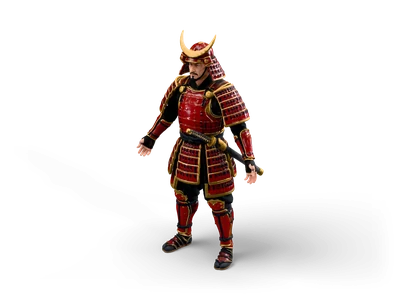
Samurai
- Input
- Samurai: a rigged character with the clips walk and run.
- Output
- Walk and run cycles in 4, 8 or 16 directions on one PNG atlas, with JSON for Phaser and PixiJS, Aseprite JSON or a Godot SpriteFrames file.
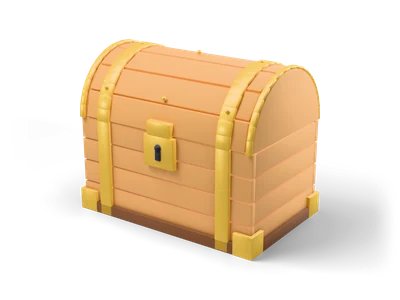
Treasure Chest
- Input
- Treasure Chest: a static prop without a skeleton.
- Output
- One frame per direction, for example eight views of a pickup for an isometric game, optionally as pixel art with a 1 px outline.
What it does not do
- Only models with a skeleton and clips give animated sprites. Static models get one frame per direction.
- Pixel art mode reduces a 3D render to hard pixels. It does not redraw details the way a pixel artist would.
Frequently asked questions
Which models can I animate?
Every model in the library with a rigged variant comes with walk and run cycles. Use the "Rigged" filter in the library to find them. Uploaded GLB files keep their own animations, and you can render several clips into one sheet.
Why does my character stay in place in every frame?
The tool measures the model in every pose and every direction first and then uses one camera for the whole sheet. The pivot (the point between the feet) lands on the same pixel in every frame, which is what a game engine needs to avoid jitter. Root motion is removed by default so walk cycles stay in place.
How do I get real pixel art instead of blurry small renders?
Switch on pixel art mode. Each frame is rendered larger and reduced with nearest or average sampling to hard pixels without soft edges, then optionally mapped to a palette (PICO-8, DB16, Endesga 32, Game Boy, your own colours or a reduced palette of N colours) and outlined with a 1 px line.
Which directions does the tool render and how are they named?
You can render 1, 4, 8 or 16 directions. They are named like a compass as seen on screen: S faces the viewer, E faces right, N faces away. Frames are called clip_direction_frame, for example walk_NE_03, and every animation tag is clip_direction.
Is my uploaded model sent to a server?
No. Loading, rendering and packing all happen in your browser with WebGL. Your file never leaves your computer.
Can I use the sprites in commercial games?
Sprites rendered from Grab3D library models are CC0 (public domain): use them in commercial projects without attribution. Sprites from your own upload keep the license of your model.
All Grab3D library models are CC0. Sprites rendered from them are free for any use, commercial included, no attribution required. About the license