Auto Rig: rig and animate your 3D character for free
Drop a humanoid GLB, glTF, FBX or OBJ file. Auto-Rig Studio places the joint markers, builds a 19 bone skeleton with smooth skin weights and plays CC0 animations on it. Adjust markers and weights, then download a rigged GLB or FBX. A free alternative to Mixamo that needs no Adobe account and keeps your file on your device.
Drop a character here
GLB, glTF, FBX or OBJ (ZIP with textures works too). A standing humanoid in T or A pose works best.
Your file is read in this browser tab and never uploaded.
How to auto rig a 3D model
- Load a standing humanoid model. The tool checks the orientation, the size in metres, the pose and the mesh, and fixes what it can: turn the character or set its height if needed.
- Check the markers for chin, shoulders, elbows, wrists, knees and groin. They are found from the shape of the model. Drag them in the front and side view, with symmetry on both sides move together.
- Create the rig. A 19 bone skeleton is built and the skin weights are computed through the volume of the character, so legs do not stick together and clothes move with the body. Test poses and animations show the result at once.
- Fix details with the weight brush if needed, pick animations from the library, then download a GLB or FBX with the bone names your engine expects.
What makes the rig hold up
- Volume based skin weights
- The model is turned into voxels and every bone measures its distance through the inside of the body. Hair, armour and loose clothes that touch the body get the same weights as the skin below.
- Animation retargeting
- Clips are adapted to the proportions of your character: rest pose differences are balanced, the hips move by the length of the legs, the feet can stay planted.
- Engine ready export
- GLB or binary FBX, metres and Y up, one skeleton, up to 4 influences per vertex. Bone names in the Grab3D, Unity Humanoid, Mixamo or Unreal style.
Limits of this version
- Two legged humanoids only. Four legged animals, wings and tails get no extra bones.
- No finger bones and no facial rig. The hand moves as one piece.
- The arms should stand away from the body (T or A pose). Arms that touch the hips give less clean weights.
- Very dense meshes (over 500,000 triangles) work but take longer and need more memory.
Input and output: examples from the library
Auto rigging in the browser: the auto rigger finds the joints, builds the skeleton and computes the skin weights, then plays animations on your character. Two library characters show the result. Both also have a prepared rigged download on their model page, so you can compare.
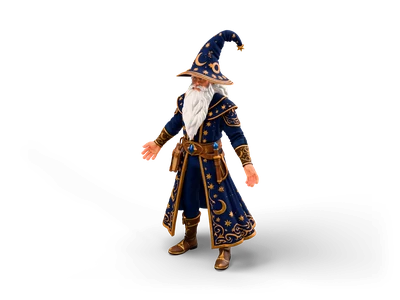
Wizard
- Input
- Wizard: a stylized humanoid with a long robe, 800,000 triangles in the full download. The link loads the web preview.
- Output
- Joint markers, a humanoid skeleton with skin weights through the robe, test poses and animations, then a rigged GLB or FBX with the bone names your engine expects.
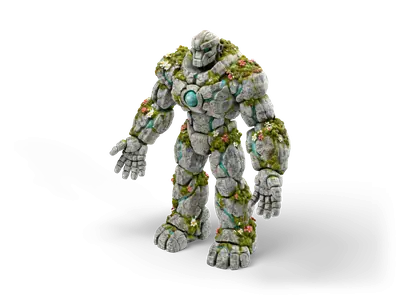
Stone Golem
- Input
- Stone Golem: a bulky creature that still stands on two legs with two arms and a head.
- Output
- The same humanoid rig on very different proportions. Markers the tool had to estimate are marked, so check them before you create the rig.
What it does not do
- Humanoids only: two legs, two arms, one head. Four legged animals, wings and tails get no bones of their own.
- No finger bones and no face rig. The hand moves as one piece.
Questions about the auto rigger
Is this a free alternative to Mixamo?
It does the same core job: markers on a humanoid model, an automatic skeleton with skin weights and animations on top. The differences: no Adobe account, the model never leaves your device, the animations are CC0 and the bone names can match your engine. The Mixamo animation library is much larger today.
What is auto rigging?
Auto rigging places a skeleton inside a 3D character and computes how strongly each bone moves each part of the mesh, the skin weights. An auto rigger does this from the shape of the model instead of by hand. You still check the joint markers, because the result depends on a clear humanoid pose.
Are the animations free to use?
Yes. All 7 animations in the library are CC0 (public domain): use them in commercial games, change them and pass them on, no credit needed. The license is shown next to every clip.
Which formats can I load and export?
Load GLB, glTF (with textures), FBX, OBJ or a ZIP with the files. Export a rigged GLB or a binary FBX 7.4 with skeleton, skin weights, materials, textures and the animations you selected.
Does my model get uploaded?
No. Loading, rigging, the weight calculation and the export all run in your browser. Nothing is sent to a server.
What if a marker is in the wrong place?
Drag it. In the front and side view a marker moves in the view plane, in the 3D view it snaps to the middle of the limb under the pointer. Turn on all joints to adjust the spine, collarbones, ankles and toes as well. Undo and redo work for every move.
Will the rig work in Unity, Unreal, Godot and Blender?
The GLB opens in Godot, Blender and any glTF viewer. The FBX was checked by importing it into Blender. For Unity choose the Unity Humanoid bone names, for Unreal the Unreal style with a root bone.
Does it work with robots, monsters and chibi characters?
Yes, as long as they stand on two legs with two arms and a head. Big heads, long robes, armour and creature heads work. Check the markers before you create the rig, the automatic placement marks the parts it had to estimate.
The animations of the clip library are CC0. Your own model keeps its own license. About CC0
Character Mixer 3D Viewer 3D Converter Browse rigged models All tools