Guide · iPhone and iPad
Play browser games fullscreen on iPhone
In short
Safari on the iPhone cannot switch a web page to fullscreen, only videos. That is why the address bar and the toolbar stay visible while you play. The way out: add the game to your Home Screen with Share, Add to Home Screen and Add. Started from the new icon, the game runs without the address bar and uses the whole screen. It stays free and nothing is installed from the App Store.
Add a browser game to the Home Screen on iPhone in 5 steps
It takes less than a minute and works the same for every game on Grab3D. The pictures show Hurrican as an example.
-
01 Step 1 / 5
Open the game in Safari
Open Safari on your iPhone and start the game itself, not only its info page. On every game page, Play now opens it, or use the direct links below. The address then contains /play/ and the name of the game.
-
 Abuse: Open the game Info: Abuse
 -
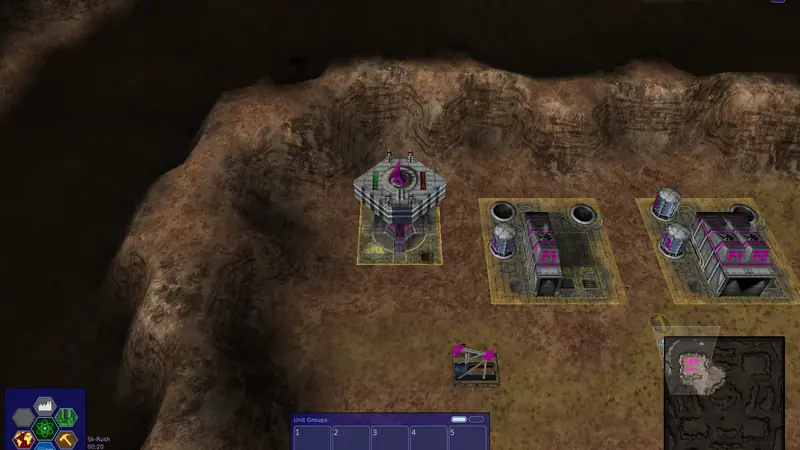 Warzone 2100: Open the game Info: Warzone 2100
 -
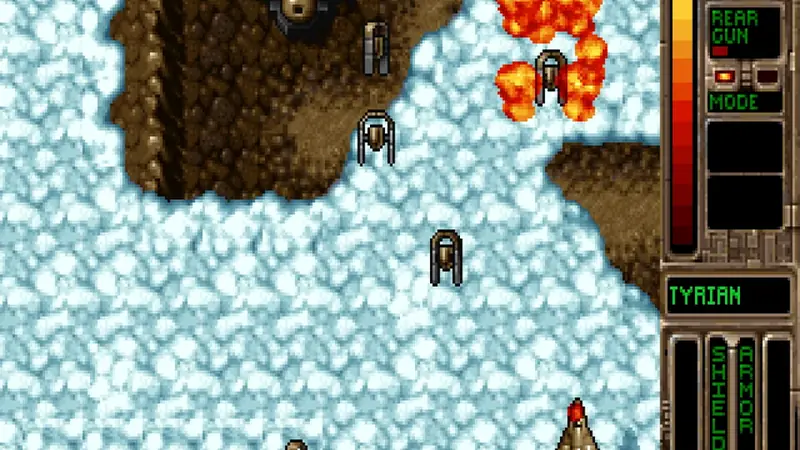 Tyrian: Open the game Info: Tyrian
 -
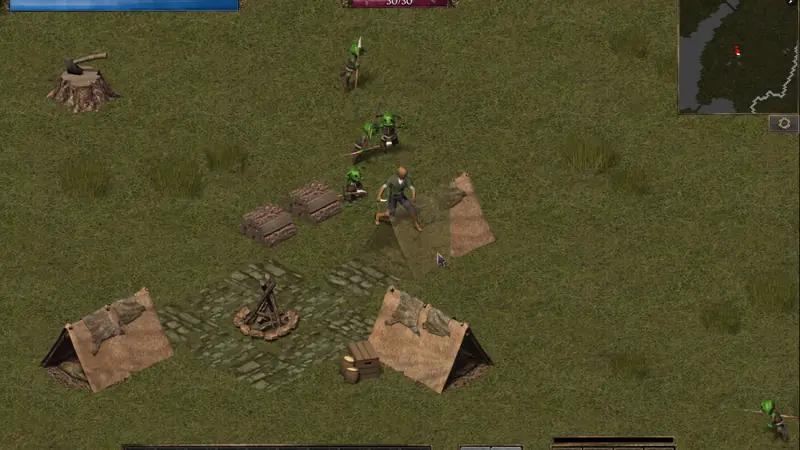 Flare: Open the game Info: Flare
 -
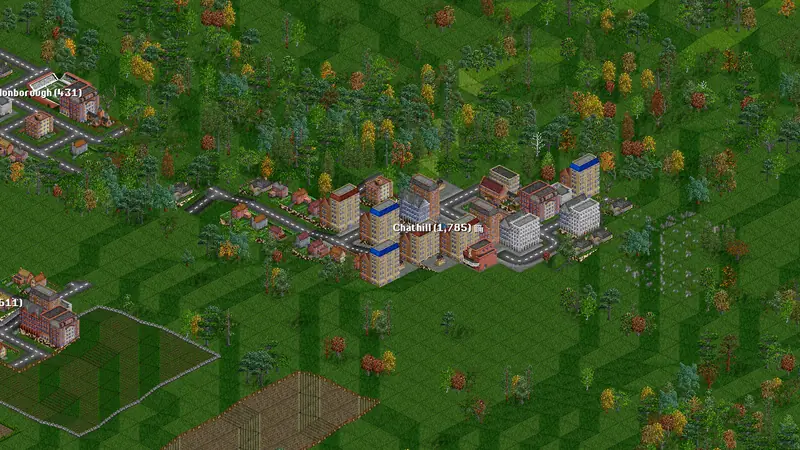 OpenTTD: Open the game Info: OpenTTD
 -
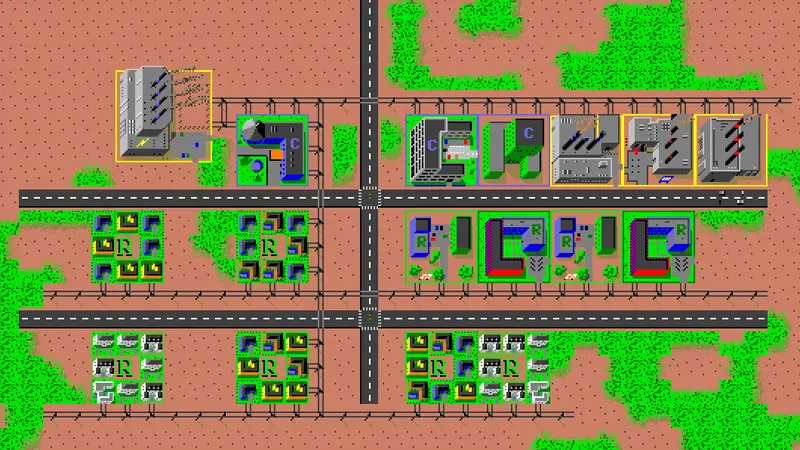 Micropolis: Open the game Info: Micropolis
 -
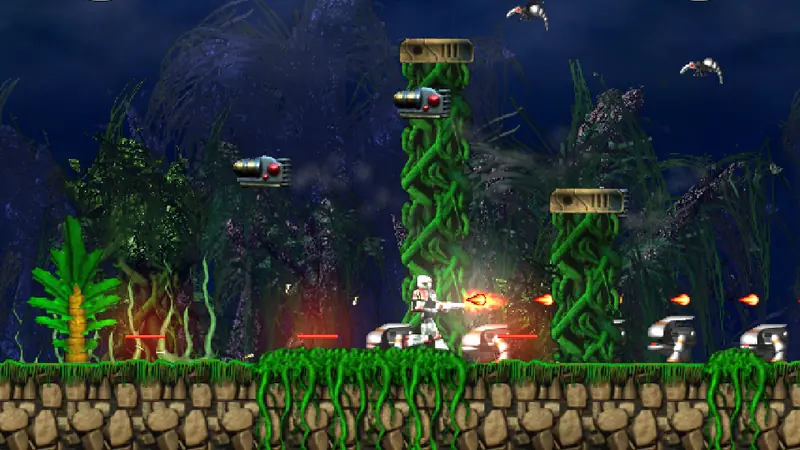 Hurrican: Open the game Info: Hurrican
 -
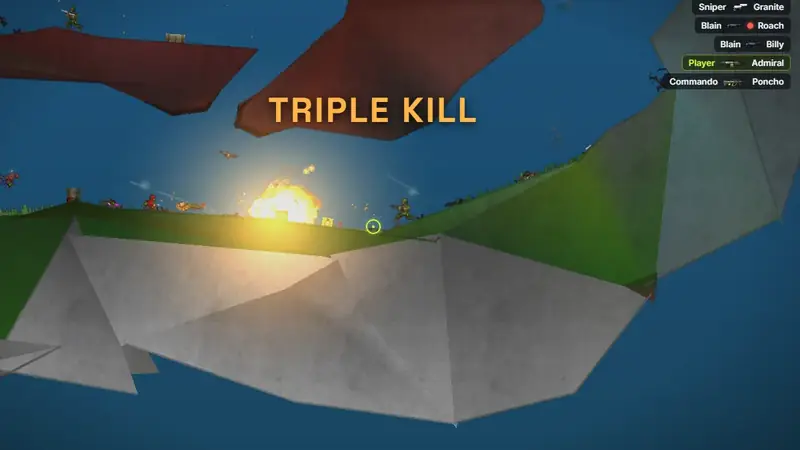 Jetstorm: Open the game Info: Jetstorm
 -
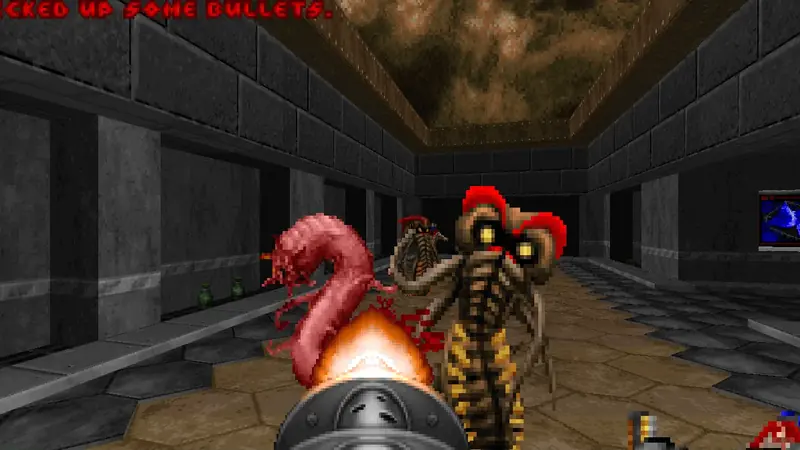 Freedoom: Open the game Info: Freedoom
-
-
02 Step 2 / 5
Tap the Share icon
Tap the Share icon, a square with an arrow pointing up. Depending on your Safari layout it sits in the bar at the bottom or at the top of the screen.
If you only see a button with three dots, tap it first and then choose Share.
-
03 Step 3 / 5
Choose Add to Home Screen
A menu with actions opens. Scroll down the list until you see Add to Home Screen and tap it.
If it is not in the list, tap More to show all actions.
-
04 Step 4 / 5
Confirm the name and tap Add
Keep the suggested name or type a shorter one, for example just the name of the game. On newer iOS versions you also see a switch called Open as Web App. Leave it switched on.
Then tap Add in the top right corner.
-
05 Step 5 / 5
Start the game from the new icon
The game now has its own icon on your Home Screen. Tap it and the game opens without the Safari address bar and toolbar, using the whole screen.
Turn your iPhone to landscape for most games. Start the game from the icon from now on.
Good to know
-
Safari and other browsers
Use Safari for these steps. On newer iOS versions other browsers such as Chrome, Edge or Firefox can also add a page to the Home Screen through their Share menu. If your browser does not offer it, open the game in Safari.
-
Savegames are kept separately
On iOS a web app on the Home Screen has its own storage, separate from Safari. Savegames from the Safari tab therefore do not show up in the app, and the other way round. Every game can back up its savegames to a file: save a backup in one place and restore it in the other. Make a backup before you delete the icon, too.
-
Landscape and orientation lock
Abuse, Warzone 2100, Flare, OpenTTD and Hurrican play best in landscape. Tyrian and Micropolis also work in portrait. If the picture does not turn, switch off the orientation lock in Control Center.
-
iPad and internet connection
On the iPad the steps are the same, and some games also offer their own fullscreen button there. The icon is a shortcut to the web version, so starting a game needs an internet connection, just like in Safari.
And on Android?
On Android phones the fullscreen button inside the games works directly in Chrome. If you want an icon as well, open the Chrome menu with the three dots and choose Install app or Add to Home screen, depending on what your phone offers. The game then starts from its own icon.
If something does not work
I cannot find Add to Home Screen
Check that the game is open in Safari and not in the built-in browser of another app, for example after tapping a link in a messenger. Open the link in Safari first. Then scroll down in the Share menu or tap More.
The address bar is still there
Start the game from the new icon on the Home Screen, not from a Safari tab. If the icon opens a normal Safari tab, delete it and add the game again with Open as Web App switched on. Make sure you added the game itself (the address contains /play/) and not its info page.
My savegames are missing in the app
That is expected, the Home Screen app has its own storage. In the Safari tab, back up your savegames in the game menu, then restore that file in the Home Screen app.
Does this install an app or cost anything?
No. The icon only opens the web version of the game. Nothing comes from the App Store, there is no account and the games stay free.